
Alerts page
Este conteúdo não está disponível em sua língua ainda.
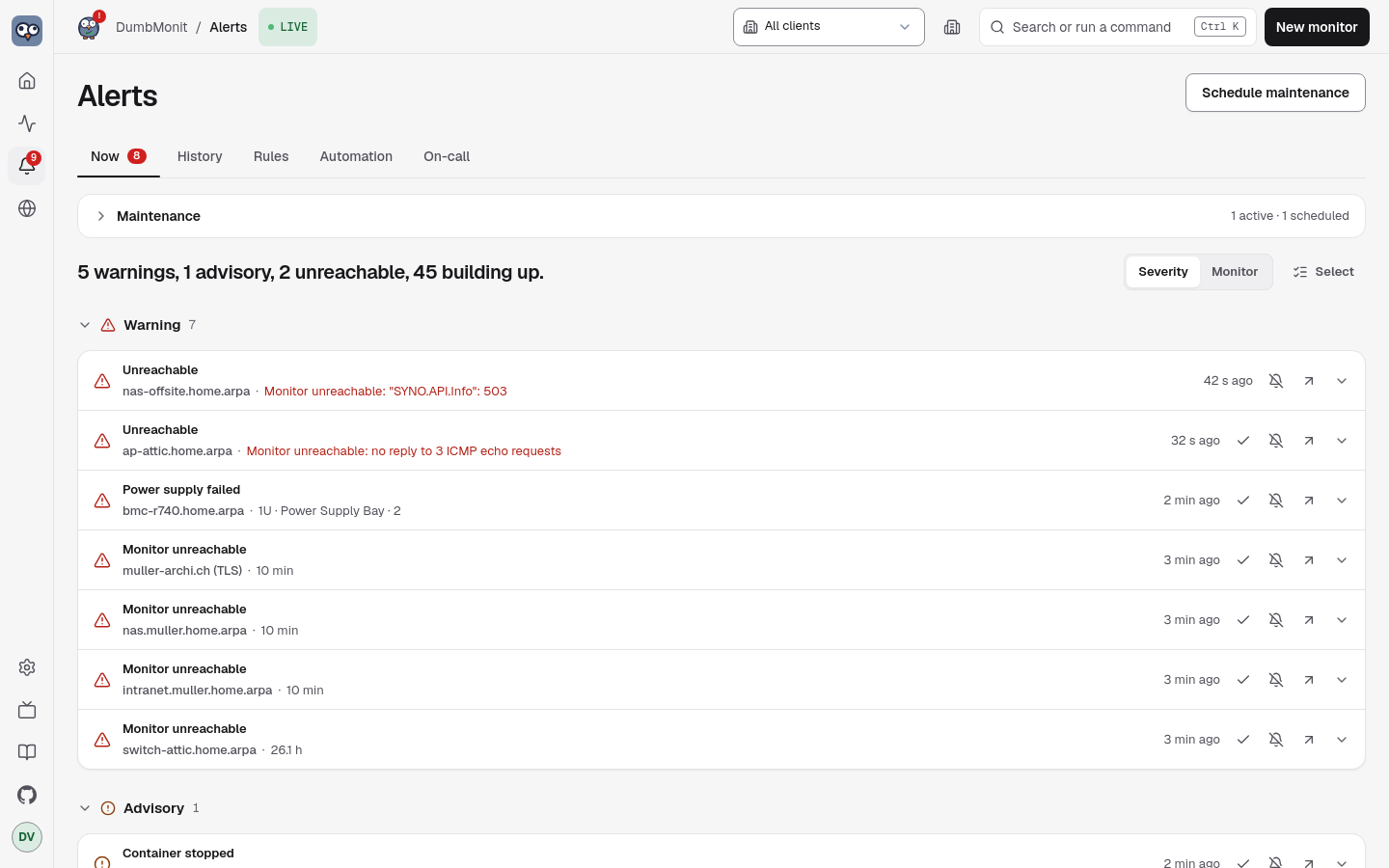
Everything about alerting on one page, behind four tabs. The tab is in the
URL (/alerts#rules), so a view is linkable. Schedule maintenance, top
right, opens the form for a window from any tab.
| Tab | What it holds |
|---|---|
| Now | The live list of problems, one line each. See The Now list. The badge on the tab, and on Alerts in the top bar, is the count of what still needs you. |
| Maintenance | Maintenance windows, Active now or Scheduled, one-off, weekly or monthly, each with the next occurrence (#scheduled). See Maintenance windows. |
| History | The last 200 transitions, each naming the monitor, the rule and what happened; resolved ones can be cleared. |
| Rules | Every rule with its severity, a Built-in mark and, if any monitor ignores it, Ignored on N monitors; enable, edit inline, delete your own, create a threshold rule. See Rules. |
Notification channels and the notification policy are under Settings → Notifications (see Notifications).
The same truth model feeds the overview bulletin and this page, so the two always agree on what needs you.
The Now list
Section titled “The Now list”One line per problem: state icon, what is wrong, which monitor, the cause in one line, how long ago, and Dismiss and Open on the line; Acknowledge Snooze and Never for this monitor are in the line’s … menu. When some alerts are dismissed, an Active | Dismissed switch appears above the list. Lines are grouped by severity (Warning, Advisory, Info, Building up, Suppressed by parent) or, with the Severity | Monitor switch, by monitor. Groups fold; Suppressed, Snoozed and Acknowledged start folded. One rule firing on several series of the same monitor is a single line (”… and 7 more”).
Click a line to unfold its details: every affected series, since when, who acknowledged it, why it is suppressed, with Open monitor.
Selecting several lines is a mode. The Select button (operators and admins) shows a checkbox on each line and a floating bar at the bottom with Select all, Acknowledge, Unacknowledge, Ignore for this monitor and Done. Escape leaves the mode.
Getting rid of an alert
Section titled “Getting rid of an alert”A firing alert is not binary — “fix it” or “live with the noise forever”. Five actions, for five different situations, open to admins and operators (a viewer sees the state but cannot change it):
- Dismiss (“got it”) is the one-click gesture, first on every alert — in the Now list, in an alert’s details and in a monitor’s panel. The alert disappears at once from the list, the overview, the wall and every counter, and nothing more is sent for it: no reminder, no escalation, and no “resolved” message either, however long the problem lasts. There is no duration to pick and no confirmation: a toast offers Undo for a moment. A dismissal belongs to the current occurrence only: once the condition clears, it ends with it, and if the problem comes back later that is a new alert, notified as usual — so a real outage next week is never missed. Its resolution stays in History, marked dismissed by whoever clicked. The Dismissed view of the Now tab lists the dismissed alerts that are still active, with who dismissed them and when, and Restore to undo a mistake.
- Acknowledge (“I’m on it”) is for one alert you are actively working on: “I know, stop reminding me for 4 h”. The menu offers 1 h, 4 h, 24 h or until resolved, plus an optional note for whoever reads the card after you. The alert keeps firing and being evaluated; only its reminders and escalations pause — including the escalation to a second channel. You are still told when it resolves, and the acknowledgement clears at that moment — an alert that comes back later notifies again. The card moves out of the main list into a quieter Acknowledged group, reads Acked by someone until a time, and offers Un-ack.
- Snooze is for “not now, check back later” without claiming you are doing anything about it: 1 h, 8 h, 1 day or until resolved. Unlike Ack, it works by opening a maintenance window scoped to that one alert’s exact labels — a sibling rule on the same monitor keeps talking. The card moves to a quiet Snoozed group showing the time left, and offers Unsnooze. Reminders pause the same way an acknowledgement’s do.
- Ignore (“don’t alert me about this again”) is for a rule that will never make sense on this monitor: it disables that rule for that monitor alone (a per-monitor override — see Per-monitor overrides) and the alert disappears for good, immediately, not just quietened. It is reversible: Stop ignoring on the monitor page, or from the rule itself in Alerts → Rules, where it reads Ignored on N monitors.
- Clear is for history, not for a live alert: once a transition has resolved, Clear (or Clear all resolved) drops it from the default History view. The row stays in the database — nothing is deleted — and Show cleared brings it back.
Public status pages ignore acknowledgements and snoozes: an acked or snoozed alert is still an alert for the outside world. An ignored rule, on the other hand, never produced an alert in the first place.
Notifications
Section titled “Notifications”Channels and the policy live in Settings → Notifications
(/settings/notifications), followed by the Reports. Two panels:
Notification channels. The list of channels, each with its kind, Enabled or Disabled, when it last sent something, and its last error if any. Add channel opens a form built from the server’s description of the chosen kind: settings (visible) and secrets (write-only). Send test sends a test message and shows the result inline. Each channel’s Delivery options hold its minimum severity, whether it hears resolutions, a minimum interval per alert, and its quiet hours (weekly, in your time zone: only Warning-level alerts come through, the rest waits for a digest).
Only some alerts. The same Delivery options hold the channel’s routing
filter: which alerts it wants, by monitor tag (site=cellar), by monitor kind
(proxmox), or by rule. Conditions on the same field read as or, different
fields as and, and an Except row always wins. Under the editor, a preview
lists which of your monitors the filter selects right now, and one sentence
says the whole thing back to you — this channel receives advisories and above
from monitors tagged site=cellar, except monitors tagged role=lab. A channel
with no filter keeps receiving everything, which is what every existing channel
does.
Editing a channel and leaving the secret empty keeps the stored one. Channel types and their fields are documented in Notification channels.
Built-in alert rules notify every enabled channel; a rule can also be limited to specific channels in its editor.
Notification policy. The global knobs that keep notifications few: the batch window, the cap per channel per hour, flap detection under More options, the public URL used for the “Open in DumbMonit” links, and the escalation row — if nobody acknowledges within a delay, also tell another channel, once. The delay counts from the moment the first message actually went out, and acknowledging the alert (or its clearing) stops the hop. See Notification policy.
The former links (/alerts#notifications, /alerts#notifications-policy,
/settings#notifications) forward here.
Operators and viewers
Section titled “Operators and viewers”An operator handles alerts without touching the configuration: they acknowledge, snooze, ignore a rule for one monitor, schedule or delete maintenance windows and clear resolved history. Rules, channels and the notification policy stay read-only for them, marked Operator — config is admin only. Ignoring is the only per-monitor override an operator can make; thresholds remain an admin’s call, and an operator’s Ignore or Stop ignoring keeps any threshold an admin set for that monitor.
A viewer sees every tab but no control: the page shows Viewer — read only where an admin would find the buttons.